Linux disk space issue
Monday, February 13th, 2012Refer to the below URL
http://www.hosting.com/support/linux/evaluate-disk-usage-on-linux-plesk-server
Refer to the below URL
http://www.hosting.com/support/linux/evaluate-disk-usage-on-linux-plesk-server
You need to run this command
1- yum install php-mcrypt if not help then you need to run2
2- yum install php53-mcrypt if not help then this for sure will help 3
3-
rpm -Uvh http://dl.fedoraproject.org/pub/epel/5/i386/epel-release-5-4.noarch.rpm yum install php53-mcryptif you want to test you need to run this belowsudo vi /etc/php.d/mcrypt.ini or$ php -r "phpinfo();" | grep "mcrypt support" if enabled then you should see mcrypt support => enabled Then restart the servicessudo /etc/init.d/httpd configtest reference http://osc.co.cr/2011/04/mcrypt-php-5-3-on-centos-5/ http://serverfault.com/questions/354871/how-to-install-mcrypt-for-php-5-3-3-on-centos-5-7-64-bit
You need to use the below command
# grep username /usr/local/cpanel/logs/access_log

References

http://forums.cpanel.net/f185/how-can-i-check-logs-cpanel-account-244041.html
Refer to the below for the installation guide
wget http://www.rfxn.com/downloads/maldetect-current.tar.gz
tar -xzvf maldetect-current.tar.gz
cd maldetect-*
sh install.sh
How to use it
maldet -a /public_html
or maldet -a /home
or to scan all the public_html for all the domains in the home directory
maldet –scan-all /home?/?/public_html
references
http://vishnulinux.wordpress.com/2011/08/25/maldet-scan-installation/
Thank you.
if you want to see the raid sync live then you can use the following command
watch cat /proc/mdstat
if you don’t want to see life, you just want to see finish or not then you need to use the below command
cat /proc/mdstat
or
more /proc/mdstat
for example if you are using raid1 and one of the hard disk got issue, then you need to change the hard disk and sync it with the other hard disk, you want to make mirror, so you need to follow the below instruction
to see the partition list you need to run the below command
fdisk -l
then you will see almost same like the below result
root@bear1 [/home/wpcsbco]# fdisk -l
Disk /dev/sda: 1500.0 GB, 1500084436992 bytes
255 heads, 63 sectors/track, 182374 cylinders
Units = cylinders of 16065 * 512 = 8225280 bytes
Device Boot Start End Blocks Id System
/dev/sda1 * 1 26 208813+ 83 Linux
/dev/sda2 27 5248 41945715 82 Linux swap / Solaris
/dev/sda3 5249 8381 25165822+ 83 Linux
/dev/sda4 8382 182374 1397598772+ 5 Extended
/dev/sda5 8382 10209 14683378+ 83 Linux
/dev/sda6 10210 12037 14683378+ 83 Linux
/dev/sda7 12038 12298 2096451 83 Linux
/dev/sda8 12299 182374 1366135438+ 83 Linux
Disk /dev/sdb: 322.1 GB, 322122547200 bytes
255 heads, 63 sectors/track, 39162 cylinders
Units = cylinders of 16065 * 512 = 8225280 bytes
Device Boot Start End Blocks Id System
/dev/sdb1 1 39162 314568733+ 83 Linux
Sda1 or 2 or 3 mean the patrrtion in the hard disk
but sda or sdb or sdc mean the hard disk device,
once you plug in the hard disk to the server, then you need to run Fdisk -l to see the new hard disk already added as sdb or sdc like that
for example if the new hard disk added as sdb then you need to make the partition before syn, and make sure the partition same like the first hard disk partition
for example the first harddisk partition is below
(Figure 2)
Device Boot Start End Blocks Id System
/dev/sda1 * 1 26 208813+ 83 Linux
/dev/sda2 27 5248 41945715 82 Linux swap / Solaris
/dev/sda3 5249 8381 25165822+ 83 Linux
/dev/sda4 8382 182374 1397598772+ 5 Extended
/dev/sda5 8382 10209 14683378+ 83 Linux
/dev/sda6 10210 12037 14683378+ 83 Linux
/dev/sda7 12038 12298 2096451 83 Linux
/dev/sda8 12299 182374 1366135438+ 83 Linux
How to get the above result? you need to run this command fdisk /dev/sda
Then after that you need to press “P” command to show the partition details
you make sure that you write down all the details then after that you need to press “q” to quit
and go enter to new hard disk to make the partition first
for example the new harddisk is sdb
fdisk /dev/sdb
then press p you will see nothing there, then you need to press “n” to create the new partition
Once you press “n” then you will get two option
1- Extended
2- Primary
then you need to select primary
then will ask you the block sector starting point, you can get it from the main hard disk , refer to figure (2) , be inform that you are now working to do the sdb1 which is the first partition, and also will ask you about the end point, you can get it from the main hard disk which is form figure (2) why we use the result of hard disk one in the hard disk two? because they are must be same partition then the sync will be working fine, because raid1 mean two hard working as one hard, the second hard will be the mirror for the first hard disk
then after the end point you need to press “t” to select the fs type (file system type, which is mean linux, you can refer to figure (2) you will see linux using ID 83, that mean we need to use the same here in the second hard disk
that mean t used to select the file system type
“notes”
if you want to list and see all the tpye then you need to press “L” then you will see all the fs type, which is even you will find linux there using 83
after you done the partition for the sdb1 then you need to repeat the same step for sdb2 which is again press n to create the partition by referring to figure 2 and also t to select the file system type, which is i can see in the figure two that sda2 using swap which is 82, so that mean you need to use it for sdb2 as well
in the end to save what you have done then you need to press “w” which is mean write
or if you want to quit then you need to press “q”
———————–
i will list all the command used
p for list of partition
n for create partition
l for list of the file system type
w to save the change
q to quit
That is all and thank you.
SSH to the server and run the below command, just you need to change the ip or ip range to your ip
/scripts/cphulkdwhitelist 124.212.220.0/24
Thank you.
In order to install it, you need to follow the below instructions
# mkdir /usr/local/src
# cd /usr/local/src
# wget http://downloads.sourceforge.net/project/ffmpeg-php/ffmpeg-php/0.6.0/ffmpeg-php-0.6.0.tbz2
# tar jxf ffmpeg-php-0.6.0.tbz2
# cd ffmpeg-php-0.6.0
# perl -i -p -e "s/PIX_FMT_RGBA32/PIX_FMT_RGBA/g;" ffmpeg_frame.c
# phpize
# ./configure && make clean && make && make install

and add  extension=ffmpeg.so in php.ini file which is located at /usr/local/lib/php.ini

after that restart Apache and check

reference
http://forums.cpanel.net/f5/imagick-php-ffmpeg-gd-install-problem-does-not-show-phpinfo-page-please-help-198202.html
As the most of you know, Hyper-V does not support usb redirection. But with some relative easy steps we can redirect our usb disk to a Hyper-V virtual machine.
First on your Hyper-V Server host open Server Manager and select Disk Management
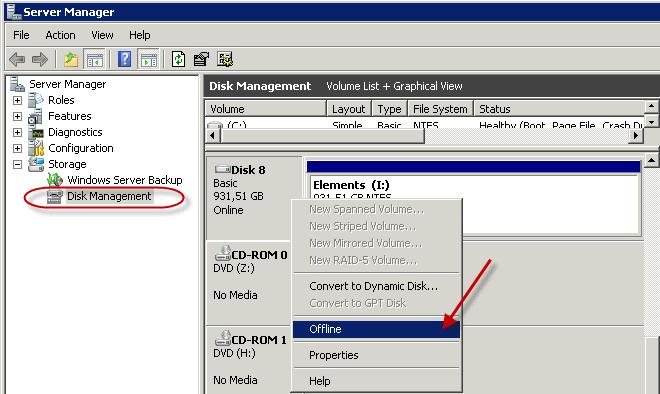
Then select your usb disk and right mouse click and choose Offline.
When done we close Server Management and open Hyper-V Manager. Select the settings of the virtual machine you would like to attach the usb drive to.
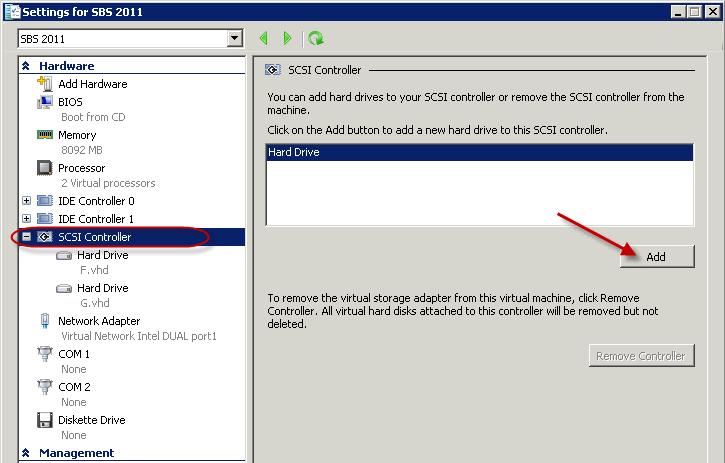
Select IDE Controller or SCSI Controller. Before you choose let me explain why I would choose the SCSI controller instead of the IDE controller for an usb redirected drive. A Hyper-V virtual machine can only boot from an IDE hard drive, you can only add a dvd drive on an IDE controller, you can only add 4 IDE devices. Another thing I would prefer to add an usb disk to the SCSI controller is I can add or remove disks to the virtual machine when it is running, to add an IDE controller disk I need to stop the virtual machine then add the disk and then start the virtual machine.
Now to add your usb disk to you virtual machine we choose Add
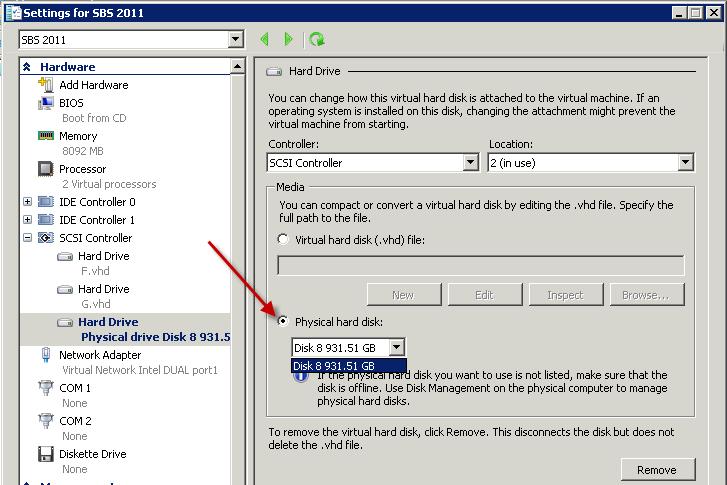
Now we choose for Physical hard disk: and choose the disk we would to add. If you have more disks available you can choose from a simple pull down list. You will only see here the disks that are set to offline so that was the first step we had to do. If you would like to add an internal hard disk you have to put it offline before you can add it.
Note: before you set another disk offline be sure there are no operating, system or application files on it because otherwise these or your whole server will crash.
When finished choose OK on the bottom of the screen and the disk is added to your virtual machine.
When we are going to look at your virtual machine and open Disk Management.

You will see the disk directly attached and you can use it within your virtual machine
If you would remove the drive from the virtual machine, go back to your Hyper-V Manager virtual machine settings on your host server.

Select the drive and choose remove and choose Apply or OK at the bottom of the screen.
After you have removed the disk from the virtual machine go back to Disk Management

Right click the drive and choose Online. Now the drive is available on your host server.
You can use this if you need to copy some files directly from the usb disk to the virtual machine or vice versa. Another thing you could use this is for is Windows / SBS backup this needs a local attached disk, although I don’t think this is a supported configuration! You can even if you have chosen for the SCSI controller change the backup disk when your virtual machine is running.
Thank you.
References
http://blog.ronnypot.nl/?p=721
in order to check the status of the raid rebuilding , you need to run the below command
SSH to the server
watch cat/proc/mdstat
or
cat /proc/mdstat
If you got the following Error
I’m afraid I wasn’t able to deliver your message to the following addresses.
This is a permanent error; I’ve given up. Sorry it didn’t work out.
:
./Maildir: No such file or directory
I’m not going to try again; this message has been in the queue too long.
You need to follow the below solution’s
To prevent such notifications being generated
Login to the sever using the SSH with root privileges..
Now open the file /etc/drweb/drweb32.ini
Check the parameter CronSummary = yes
Now turn it to
CronSummary = No
Once done please restart the Dr. Web daemon Or PSA service daemon and you are done..
You’ll not receive such notifications again
or you need to go to /var/qmail/alias
then open the files inside alias directory, and just remove the email from the files then will not receive any notification
to that email.